
Running a gym alone is fine for a while, but the moment you have a trainer helping with the floor, they’ll want their own login. Fytlink lets you add staff with their own account and their own level of access. This guide walks through adding, editing, and removing them.
Section 1 — What each role can do
Two staff roles besides you, the owner:
- Admin — trusted second-in-command. Can manage members, plans, payments, and workouts. Cannot add or remove other staff. Best for a manager or spouse-runs-the-gym-with-you.
- Staff — front-of-house or trainer role. Can log workouts, assign exercises, and do basic member work. Doesn’t touch pricing or the ledger settings. Best for trainers and receptionists.
You (the Owner) sit above both. Nobody can edit or remove you from within the app.
Section 2 — Find the Staff screen
Open Profile
From Home, tap your avatar in the top-right. That opens Profile.
Tap Staff
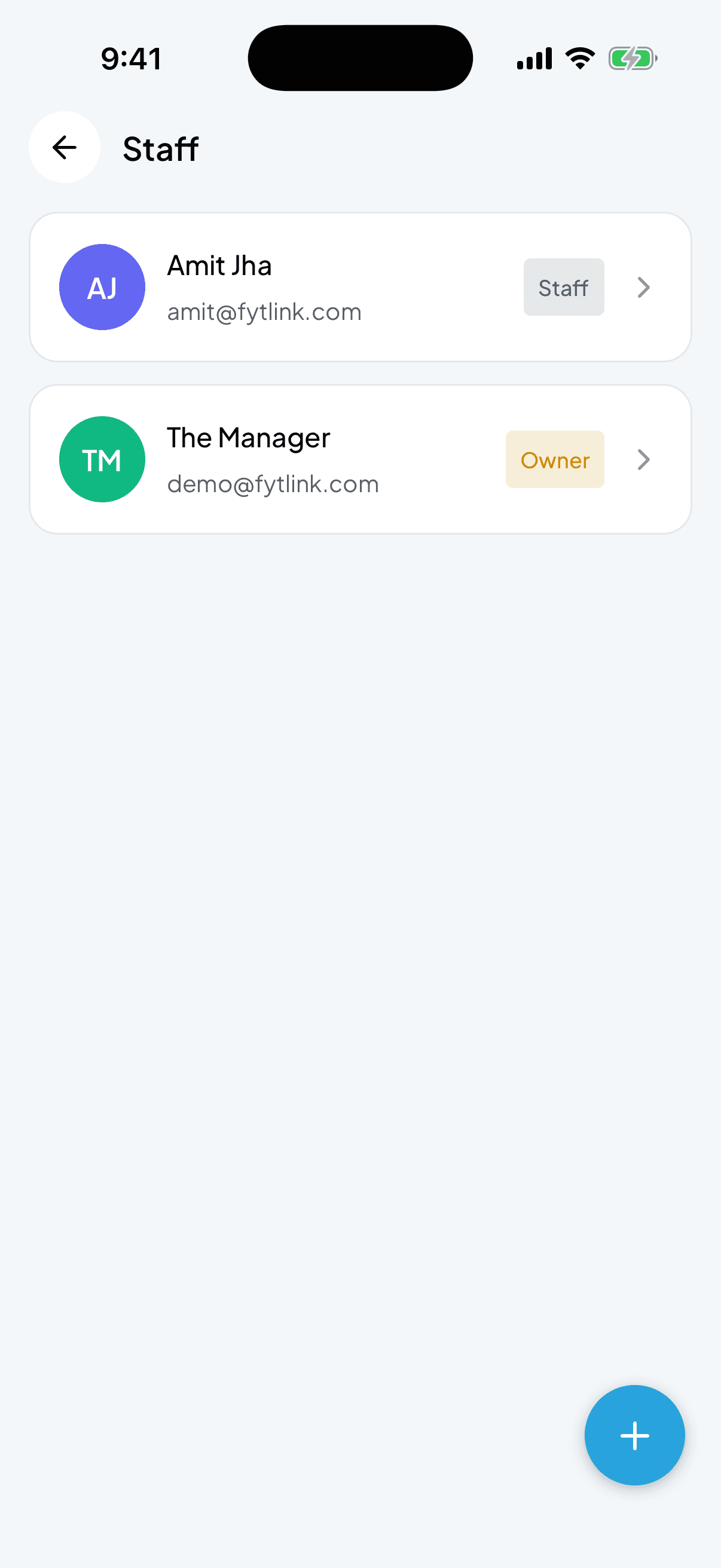
Scroll to the Settings section and tap Staff. You’ll see a list of everyone who has a login — your own account shows with a yellow Owner badge, and any staff you’ve added shows with a Staff or Admin badge next to their name.
Section 3 — Add a staff member
Tap the + button
The circular + in the bottom-right opens Add Staff.
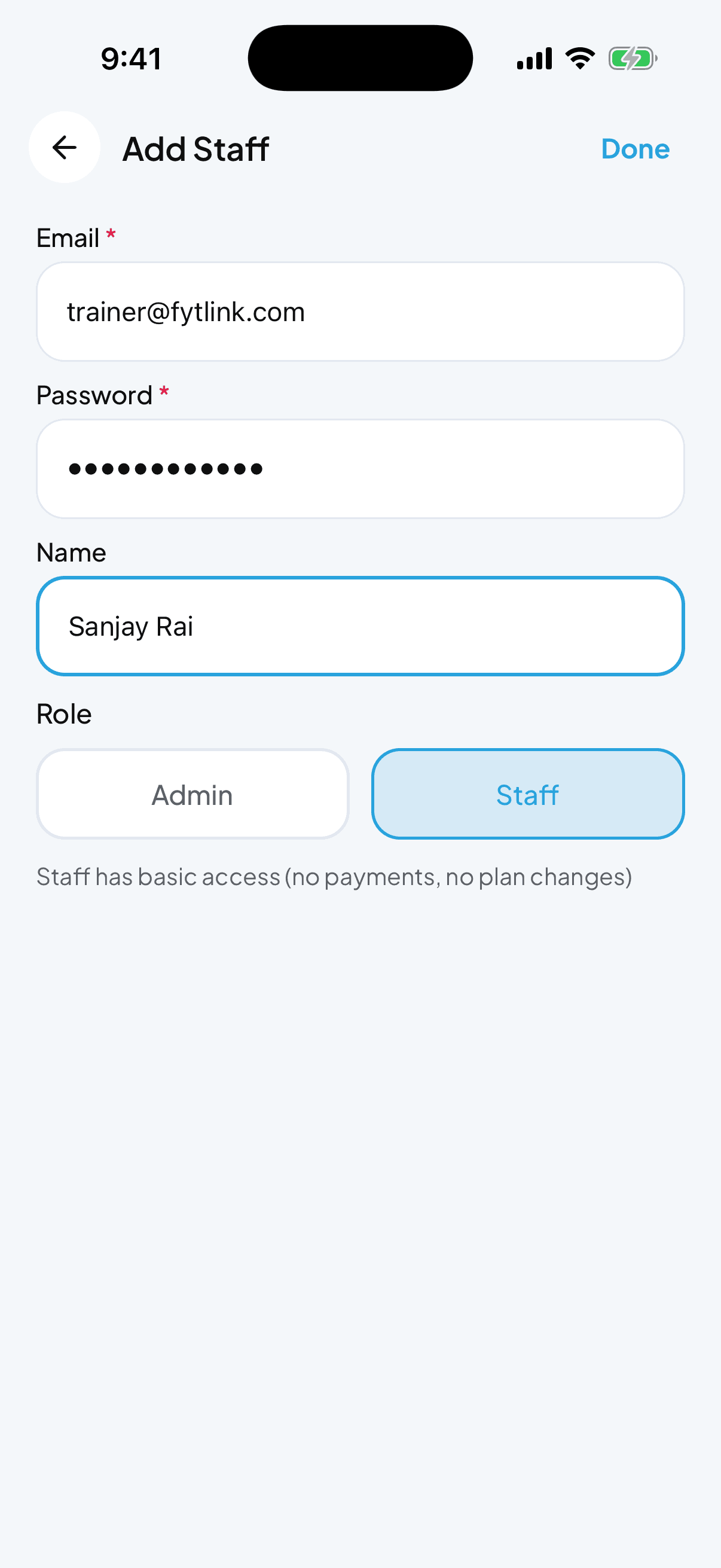
Enter their email
Their Email is the login username. Must be unique — Fytlink won’t let two accounts share an email.
Set a password
Password — pick something and share it with them securely (WhatsApp, in person, whatever you use). There’s no email invite; they log in directly with what you set.
Enter their name (optional)
Name is what shows up around the app when they’re signed in. Leave blank if you don’t care — you can add it later.
Pick a role
Admin or Staff — see Section 1 above for what each can do. The screen shows a hint under the toggle: "Staff has basic access (no payments, no plan changes)".
Tap Done
Their account is live immediately. Tell them to open Fytlink and sign in with the email and password you set.
Section 4 — Edit a staff member
Tap their card
On the Staff list, tap the row of the person you want to change. Edit Staff opens.
Change name or role
You can rename them or move them between Admin and Staff. You can’t change their email or reset their password from here.
Tap Done
Changes save immediately. If you promoted a Staff to Admin, their next login gets the wider access.
Section 5 — Remove a staff member
Open the person
Staff list → tap their card.
Tap the ⋯ menu
Top-right ⋯ → Remove Staff. Confirm.
They can’t sign in anymore
Their account is gone. Anything they added — members, payments, workouts — stays intact.
Common questions
How many staff can I add? As many as you need. Most gyms have one to three.
Do staff see money and dues? Admins do. Staff (basic role) don’t — they see members and workouts, but the payment sheets and dashboard revenue card are hidden for them.
Can staff share a login? They can, but don’t. Each person gets their own account so you know who added what.
A staff member left — should I delete them or just change their password? Delete them (Remove Staff). Their history stays; only their login is revoked.
Can staff use the app on their own phone? Yes. They install Fytlink like you did and sign in with the email and password you set. Same app, different account.
Keep reading
How to set and adjust the admission fee
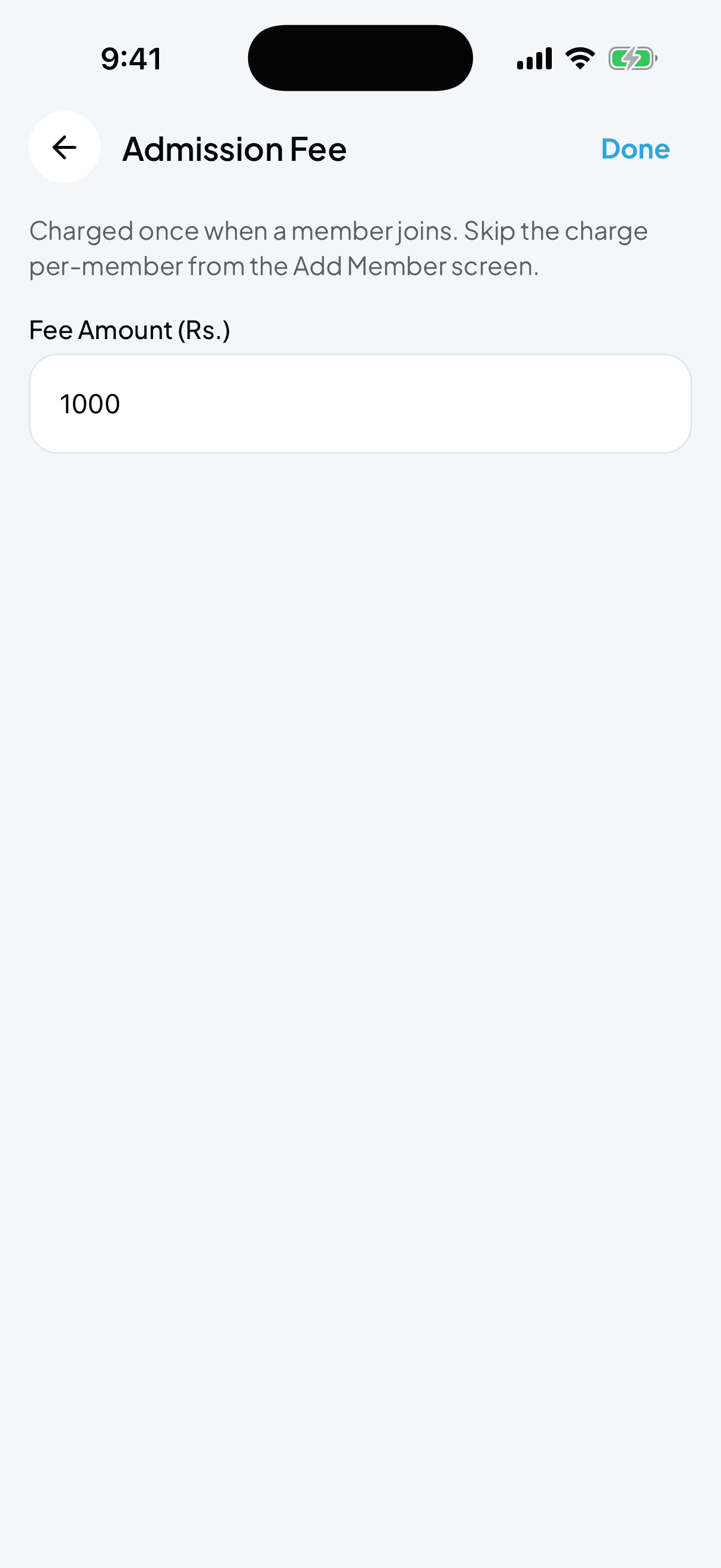
The admission fee is a one-off charge that every new member pays when they join. Set it once, skip it for anyone you want.
How to create and manage membership plans
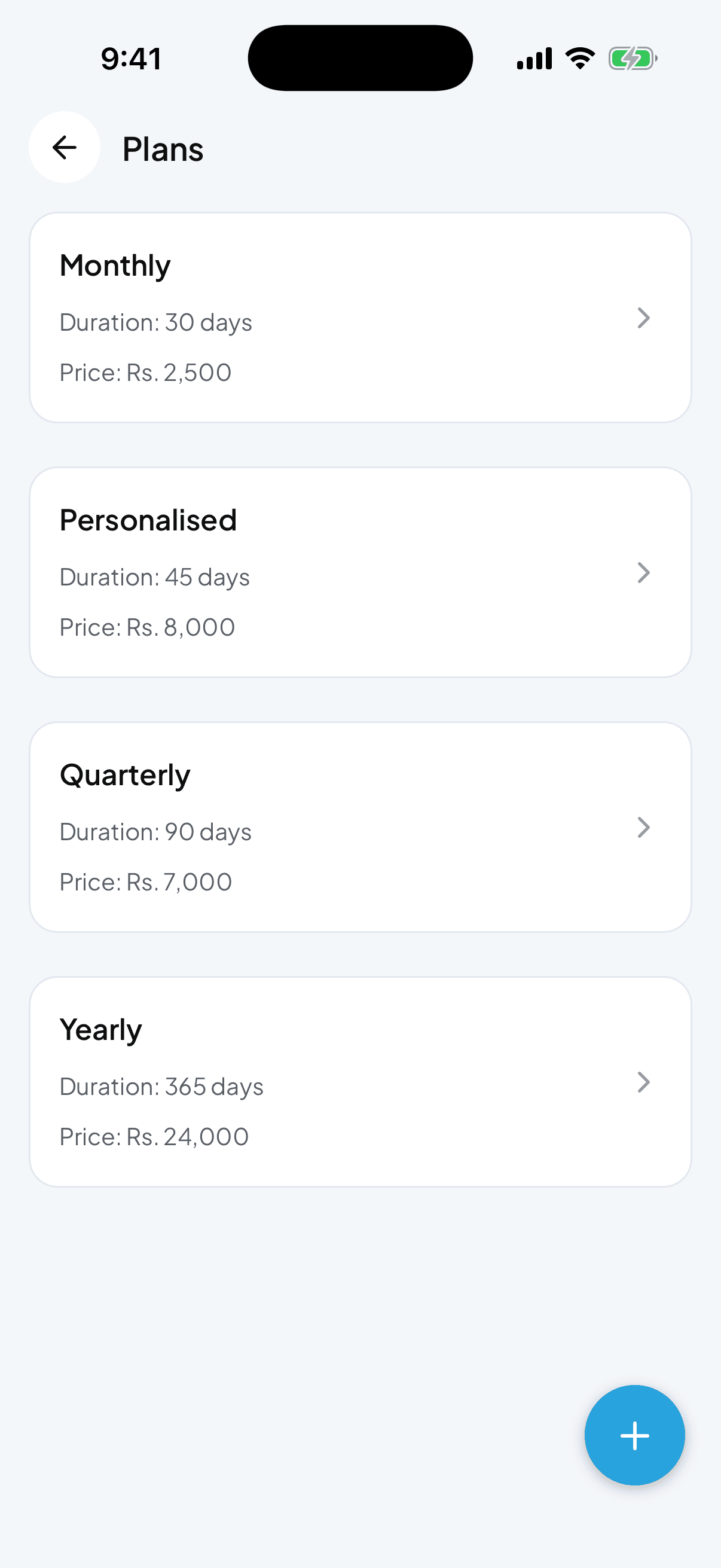
Plans are how Fytlink knows what to charge each member and when they expire. Set up your monthly, quarterly, and yearly plans in a couple of minutes.
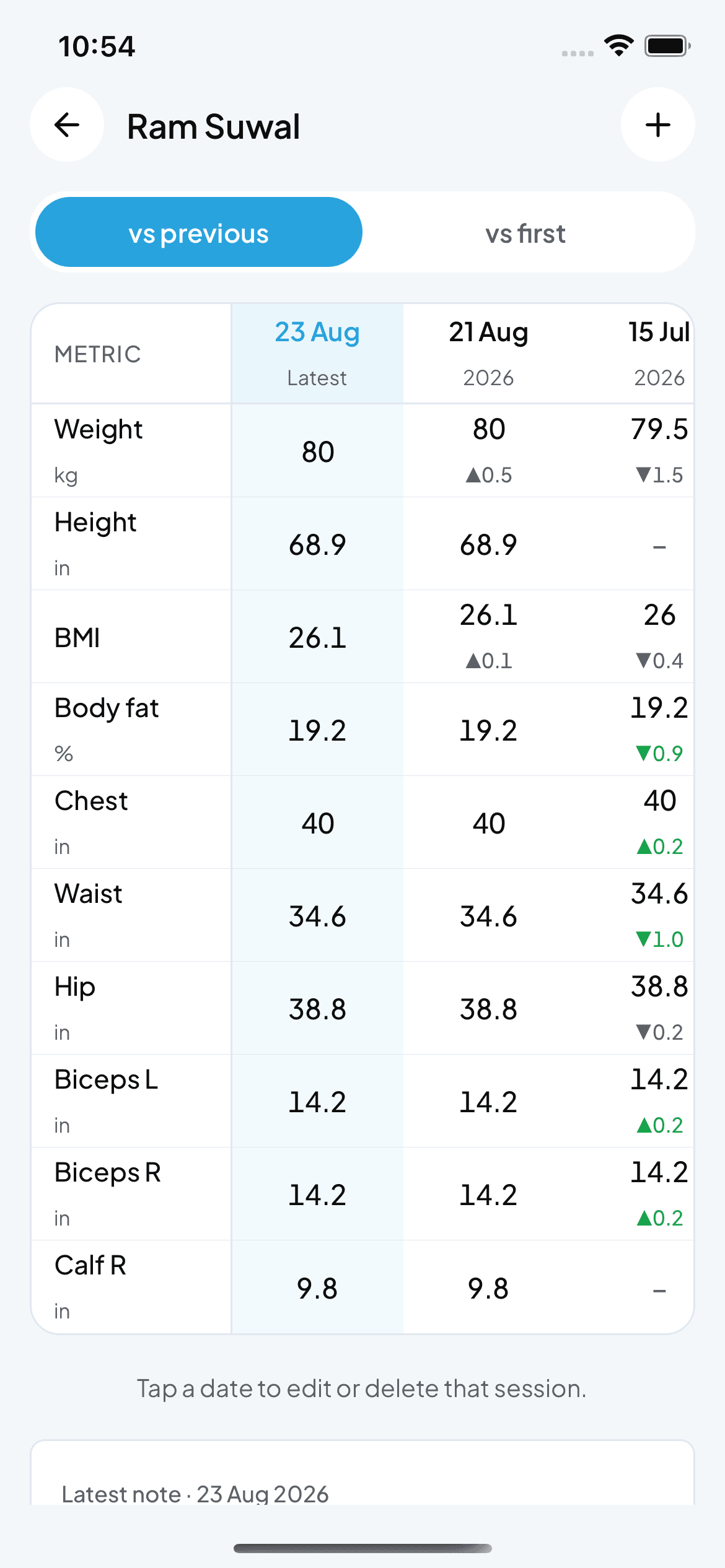
How to record and read body measurements
Fytlink tracks weight, tape and caliper readings per member as dated sessions. This guide walks through recording a session, reading the change grid, picking your unit system, and fixing bad entries.