
Plans are the price list of your gym. Every member is on one, and Fytlink uses the plan to figure out what to charge them and when their membership ends. This guide is short — plans are just a name, a duration, and a price — but it also covers what happens when you change a plan later.
Section 1 — Find the Plans screen
Open Profile
From Home, tap your avatar in the top-right corner. That opens Profile.
Tap Plans
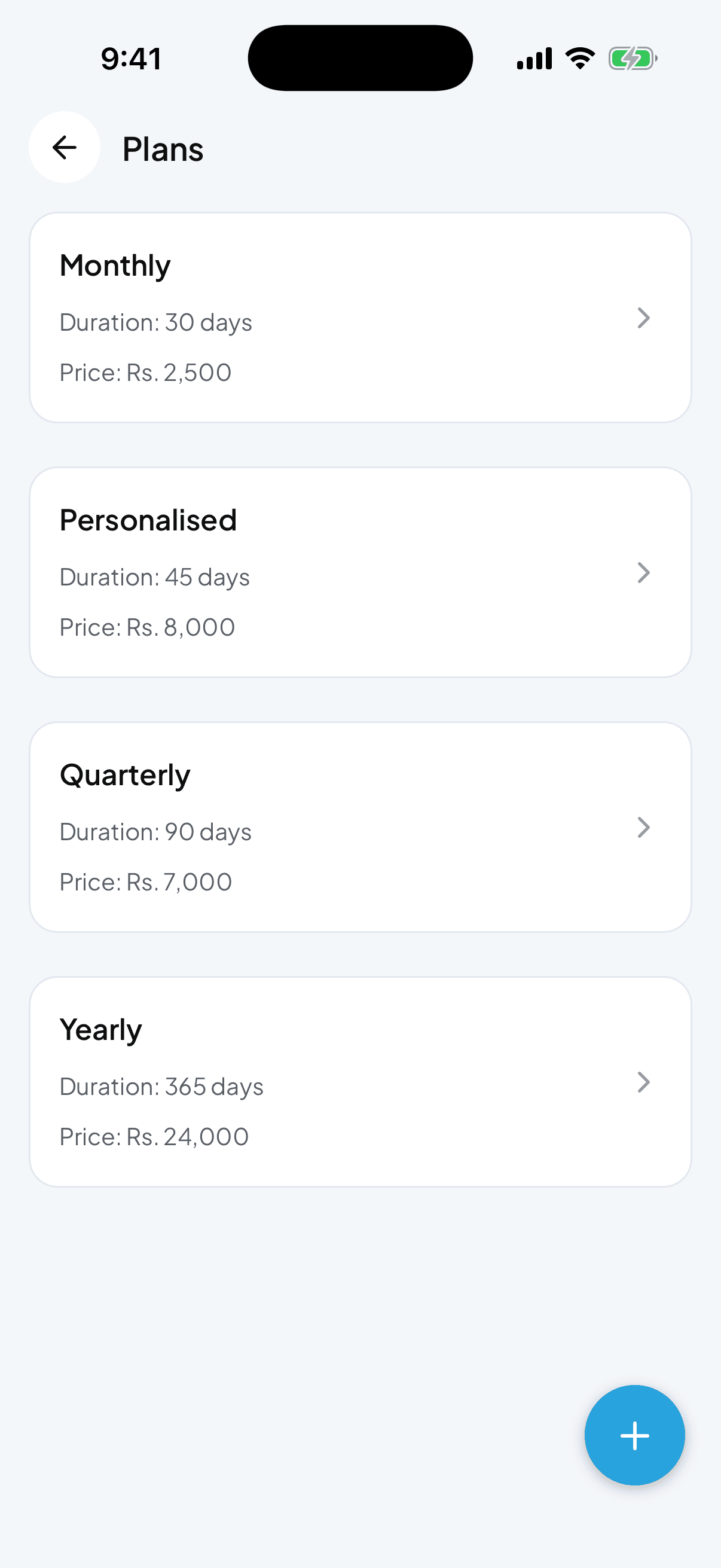
Scroll to the Settings section and tap Plans. You’ll see a list of every plan you’ve set up, sorted by duration (shortest at the top). If it’s empty, that’s expected.
Section 2 — Add a plan
Tap the + button
The circular + in the bottom-right opens the Add Plan screen.
Name it
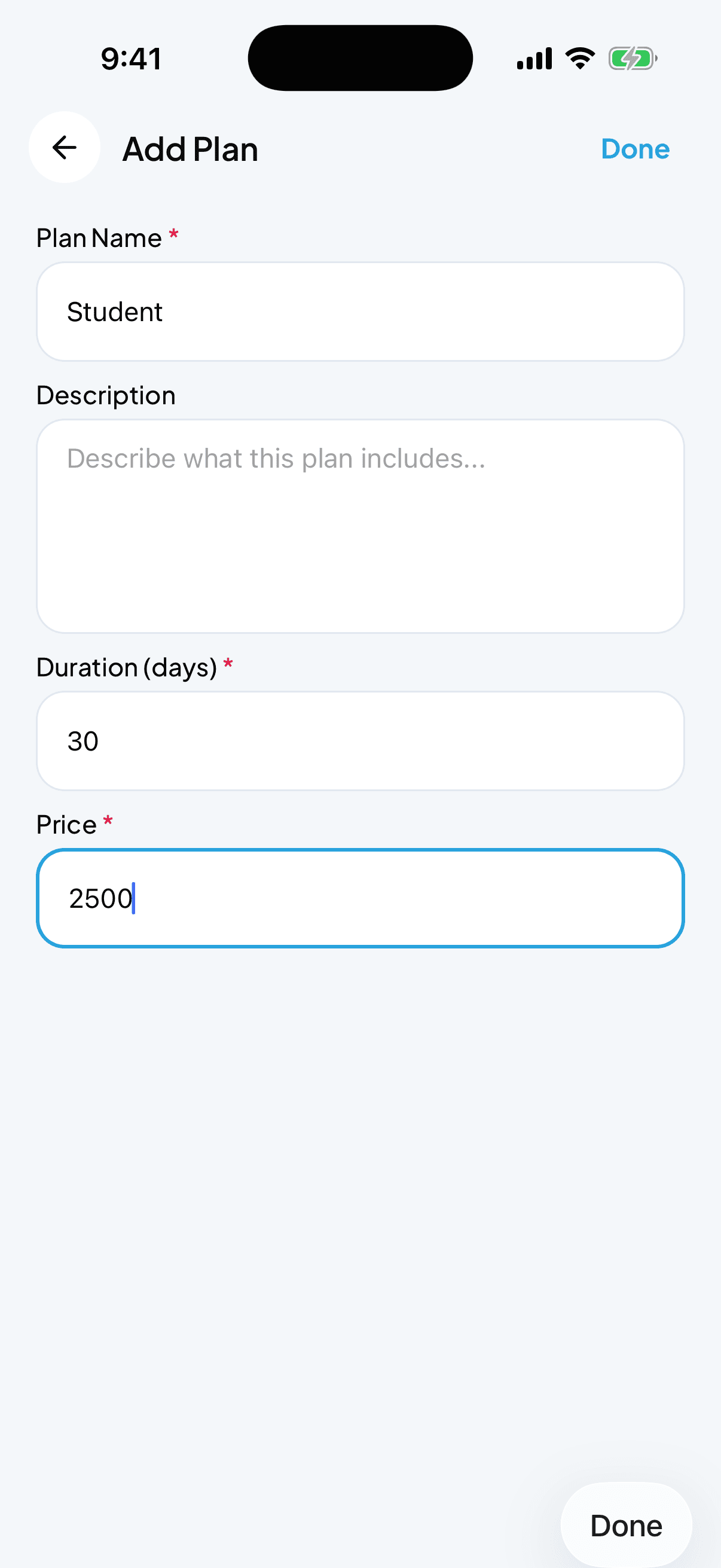
Plan Name — what your members will hear on the phone. Monthly, Quarterly, Yearly, Student, whatever fits.
Add a description (optional)
A one-liner about what this plan includes — "Includes 2 personal training sessions", "Weekdays only", etc. Leave blank if you don’t need one.
Set duration in days
Duration (days) — how long this plan lasts. 30 for a month, 90 for a quarter, 365 for a year. Fytlink uses this to calculate the expiry date the moment a member joins.
Set the price
Price — the fee you charge for this plan (in Rs.). This is what shows up in the ledger and the members-owe-you total on the dashboard.
Tap Done
Done is in the top-right. Your new plan appears in the list immediately.
Section 3 — Edit or delete a plan
Open the plan
On the Plans list, tap the plan card. Edit Plan opens with everything pre-filled.
Change what you want
Rename it, change the price, adjust the duration. Tap Done to save.
To delete: use the ⋯ menu
Inside Edit Plan, tap the ⋯ menu in the top-right and choose Delete Plan. Confirm. The plan is gone from the picker but existing members on that plan keep their old plan intact.
Section 4 — Assign a plan to a member
Plans on their own don’t do anything — you assign one to a member during signup or renewal.
Add a new member
Home → Member quick action → fill name and phone → pick a plan from the dropdown → Done. Fytlink calculates expiry as today + plan duration and adds the plan fee to their ledger.
Change an existing member’s plan
Members tab → tap the member → in the Information section on their profile, tap Change plan. Pick the new one. A small dialog asks Add Plan Fee? — say yes if this is a real renewal (adds the new price to their dues), no if you’re just correcting a data entry (no charge).
Common questions
How many plans can I have? As many as you want. Most gyms end up with three to five (Monthly / Quarterly / Yearly + maybe a Student and a Trial).
Can a plan be free? Yes. Set the price to 0. Useful for trials or family discounts.
What if my plan isn’t in days — it’s in months? Fytlink still uses days. A "monthly" plan is 30 days, a "3-month" is 90, a year is 365. Owners in some countries use 28 for a lunar month — that works too.
Can I mark a plan as inactive so nobody joins on it, but old members keep it? Not directly. Easiest: delete the plan (existing members keep their assignment), then create a new one when you want it back. Their history stays intact.
Do plans include the admission fee? No — admission fee is a separate one-off charge set from Profile → Admission fee. Plans are the recurring price only.
Keep reading
How to add your first member
A 60-second walkthrough for getting your first gym member into fytlink — from name and phone through their first plan.
How to set and adjust the admission fee
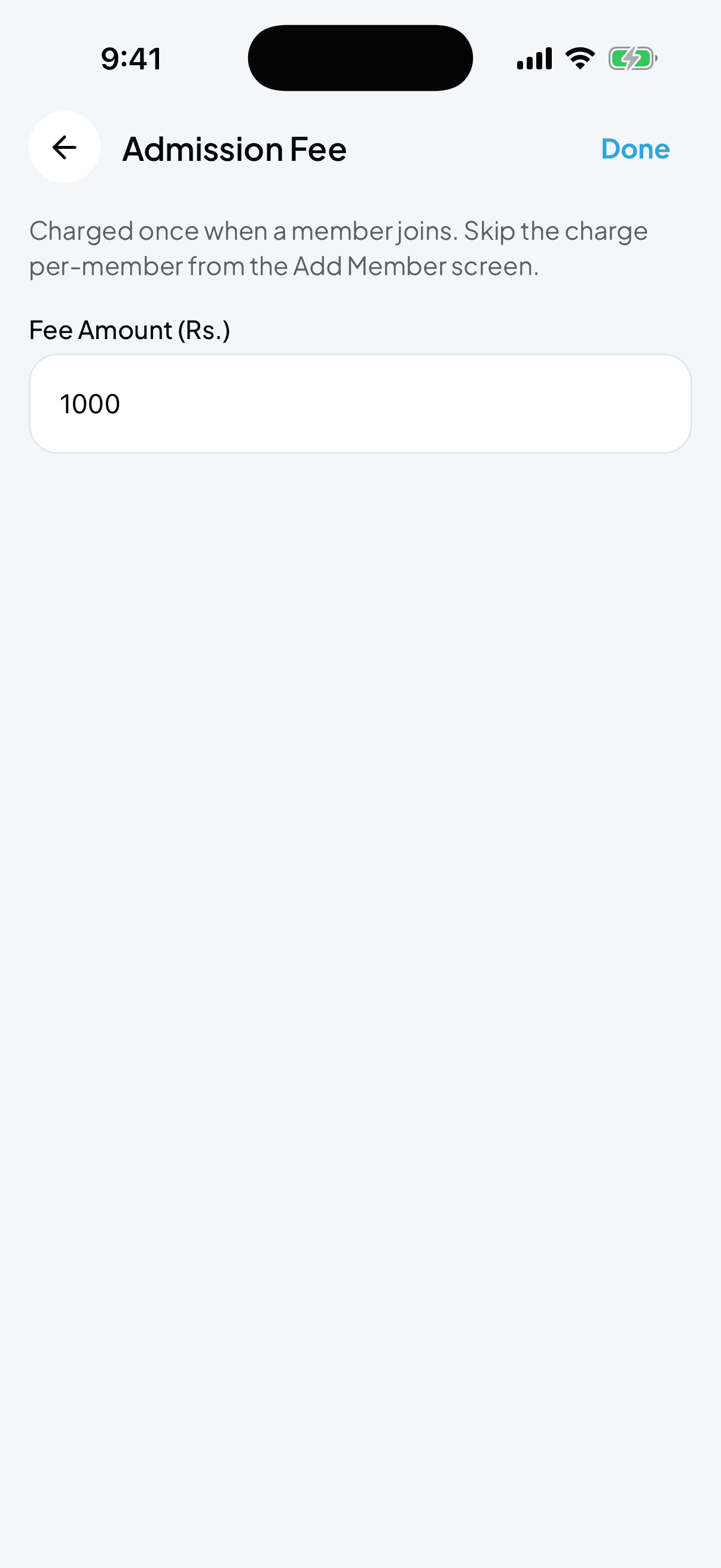
The admission fee is a one-off charge that every new member pays when they join. Set it once, skip it for anyone you want.
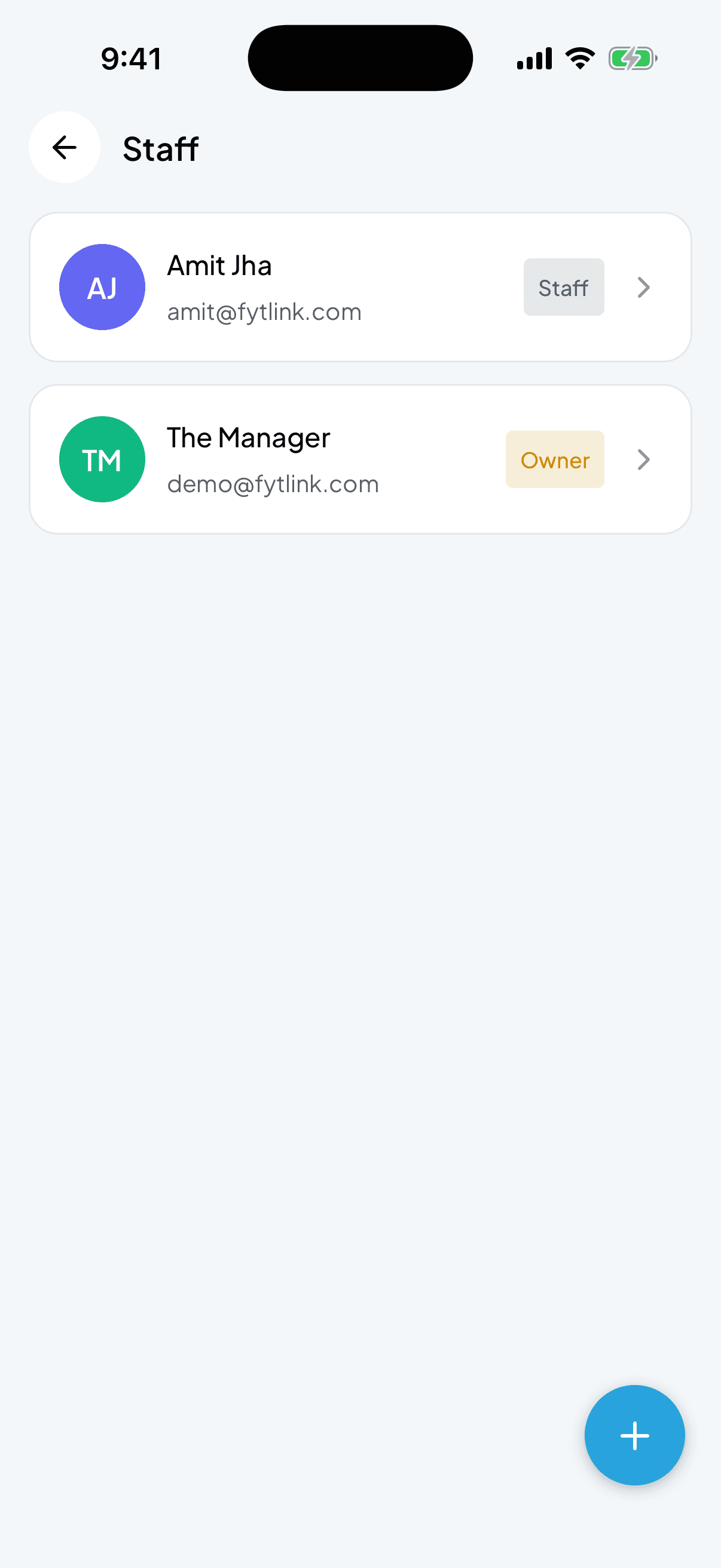
How to add and manage staff
Give your trainers or floor staff their own login so they can add members, collect payments, and mark attendance — without seeing everything you do as the owner.