
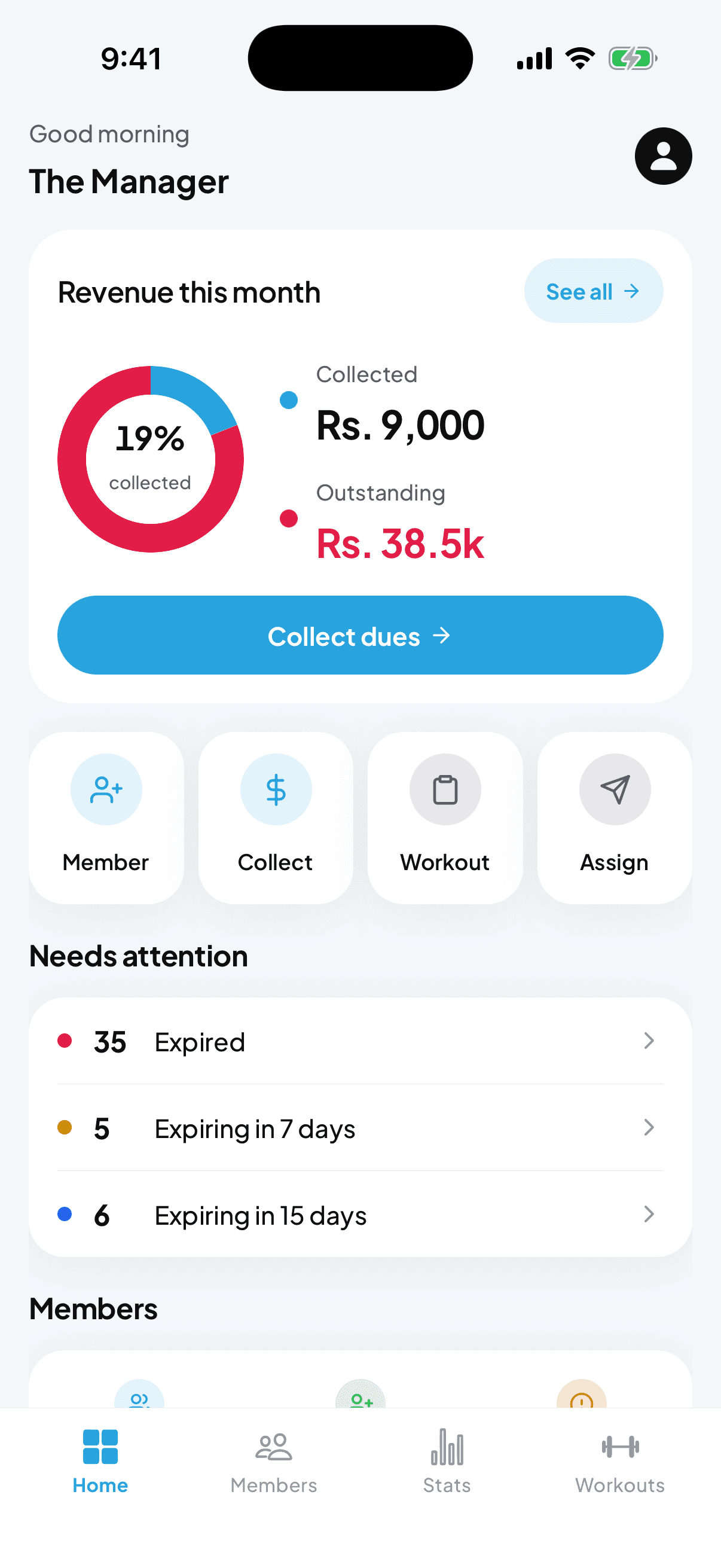
Adding your first member is the fastest way to feel what fytlink does. This guide walks you through it, start to finish, in about a minute.
The full flow
Open the app and go to Members
From the dashboard, tap the Members tab at the bottom. If you don’t have any members yet, the list will be empty — that’s expected.
Tap the plus button
The circular ⊕ button in the bottom-right opens the new-member sheet.
Fill in name, phone, and plan
Only these three fields are required. The plan dropdown lists everything you’ve set up on the Plans screen. If you haven’t created plans yet, jump into Profile → Plans → New plan and add one first.
Save
That’s it — the member shows up on your Members list and on the dashboard tile immediately. Their expiry is calculated from today plus the plan duration.
What happens next
Once the member is saved:
- They appear on the Members list, sorted by most recent first.
- The Members tile on your dashboard bumps up by one.
- If the plan has a fee, the payment appears in the ledger for today.
- The member’s expiry date is set — you’ll see them in Needs attention when they hit the 7-day or 15-day window.
Common questions
Can I add members in bulk? Yes, from a spreadsheet — we’ll help with the first import. Contact us to set it up.
What if I don’t have the member’s phone yet? Save with a placeholder and edit later. Phone is required only so you can send the workout share link.
How do I edit a member? Tap their row in the Members list, then Edit in the top-right.
Keep reading
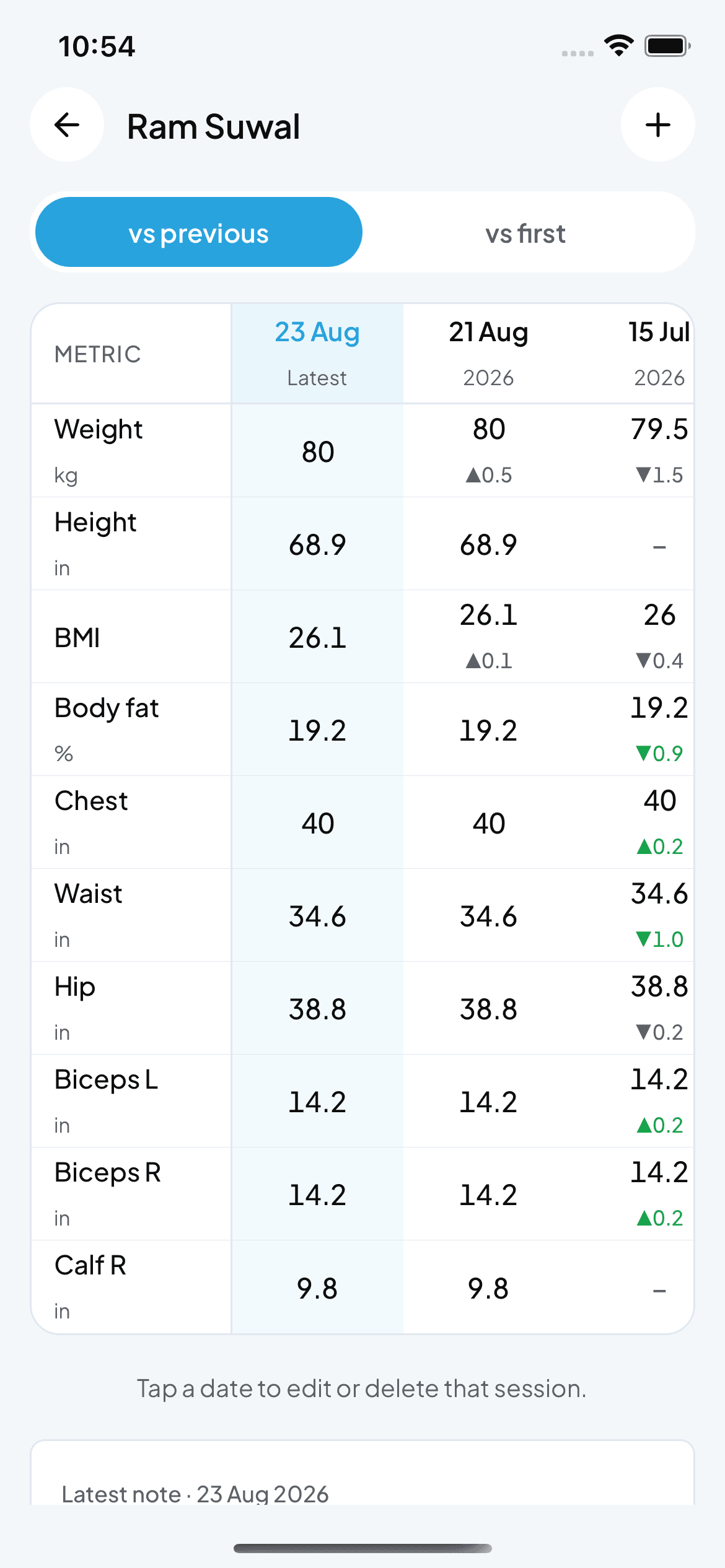
How to record and read body measurements
Fytlink tracks weight, tape and caliper readings per member as dated sessions. This guide walks through recording a session, reading the change grid, picking your unit system, and fixing bad entries.
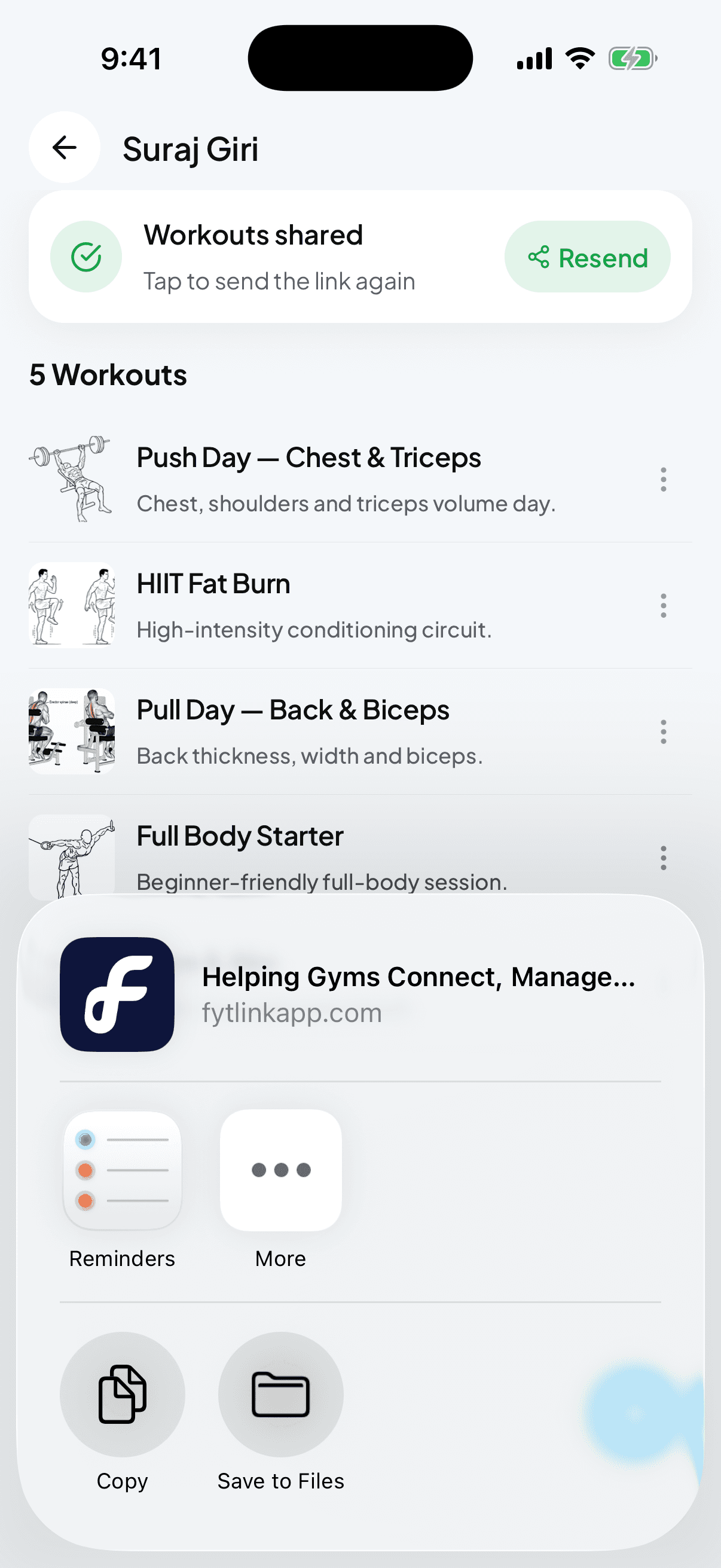
How to build, assign, and share workouts
The full workout loop in Fytlink — build a routine (from scratch or from your handwritten note), assign it to a member, and send them a private link they open on any phone. No app install for them.
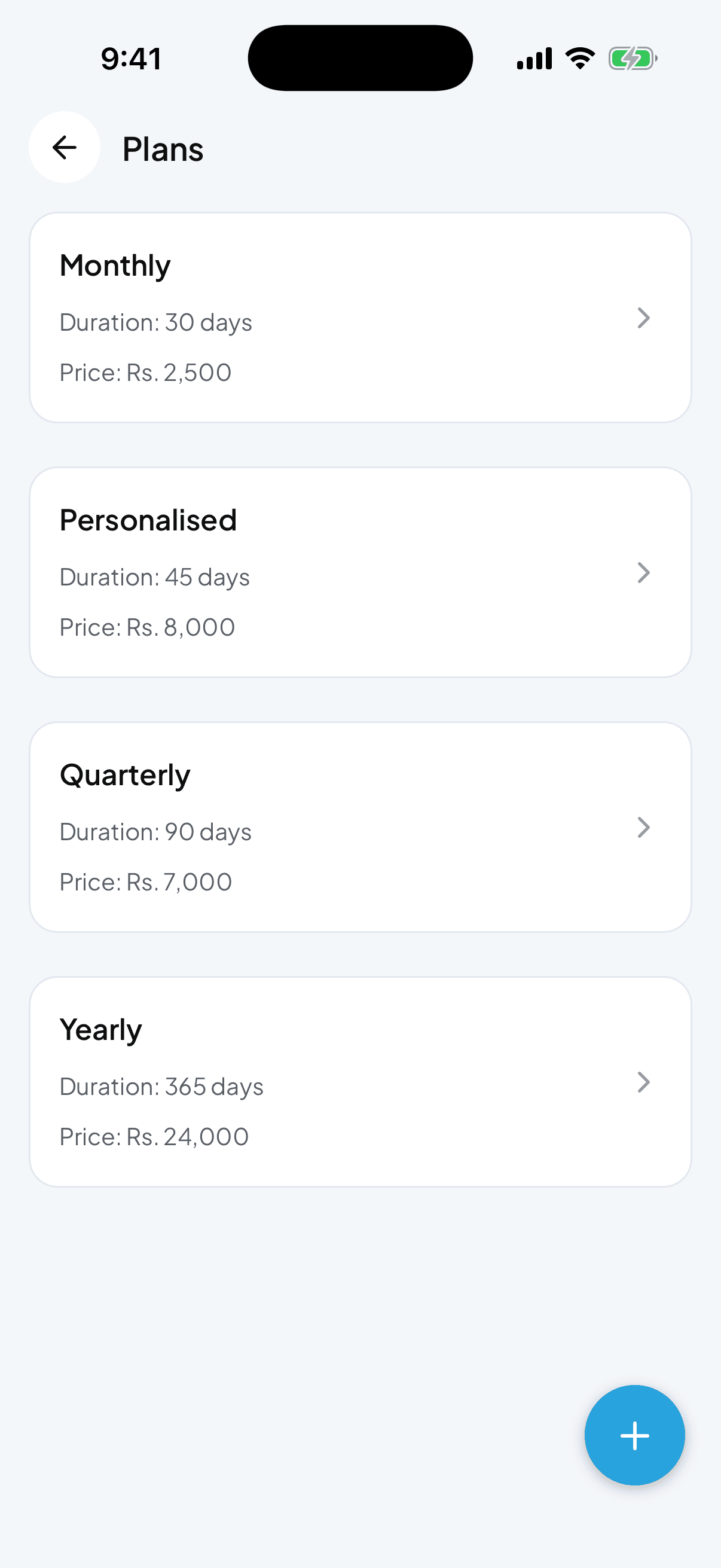
How to create and manage membership plans
Plans are how Fytlink knows what to charge each member and when they expire. Set up your monthly, quarterly, and yearly plans in a couple of minutes.