
Jul 2, 20269 min readby Fytlink team
How to build, assign, and share workouts
The full workout loop in Fytlink — build a routine (from scratch or from your handwritten note), assign it to a member, and send them a private link they open on any phone. No app install for them.
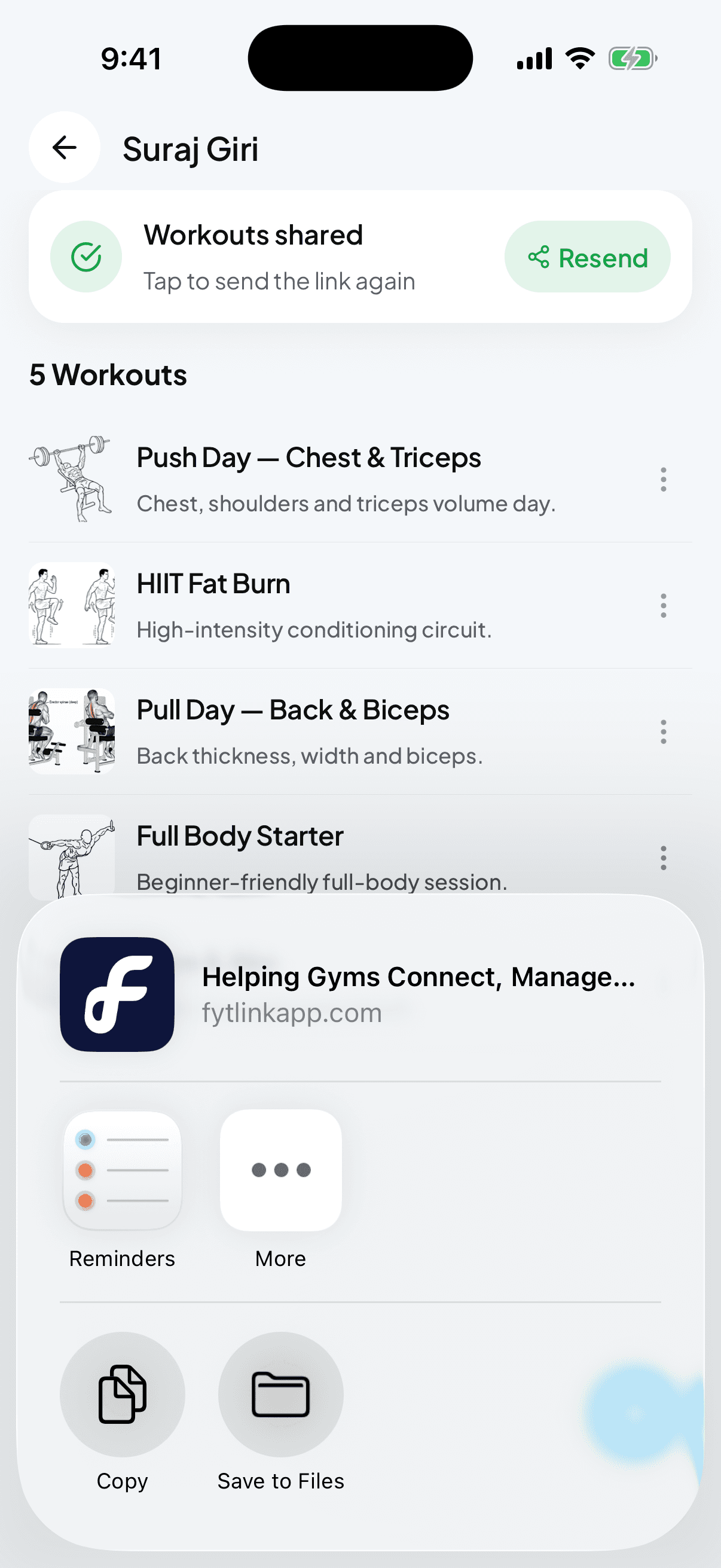
Workouts are the heart of Fytlink. This guide walks you through the whole loop, in the order you’ll usually do it: build the workout, assign it to a member, share the link. It also covers the shortcut most owners end up loving — turning a handwritten programming note straight into a workout.
What each word means
Before we start, three words we’ll use a lot:
- Workout — a single training session (e.g. “Push day”, “Legs A”). Made of exercises with sets and reps.
- Exercise — one movement (e.g. bench press, cable row). Lives in your exercise library so you can reuse it.
- Share link — a private web link tied to one member. They open it on their phone and see everything you’ve assigned them. No app, no signup.
That’s the whole vocabulary. Everything else in this guide is just tapping through screens.
Section 1 — Build a workout from scratch
Use this when you want a clean, structured workout with each exercise laid out one-by-one. If you already jot programming on paper, jump to Section 2 — it’s faster.
Open the Workout quick action
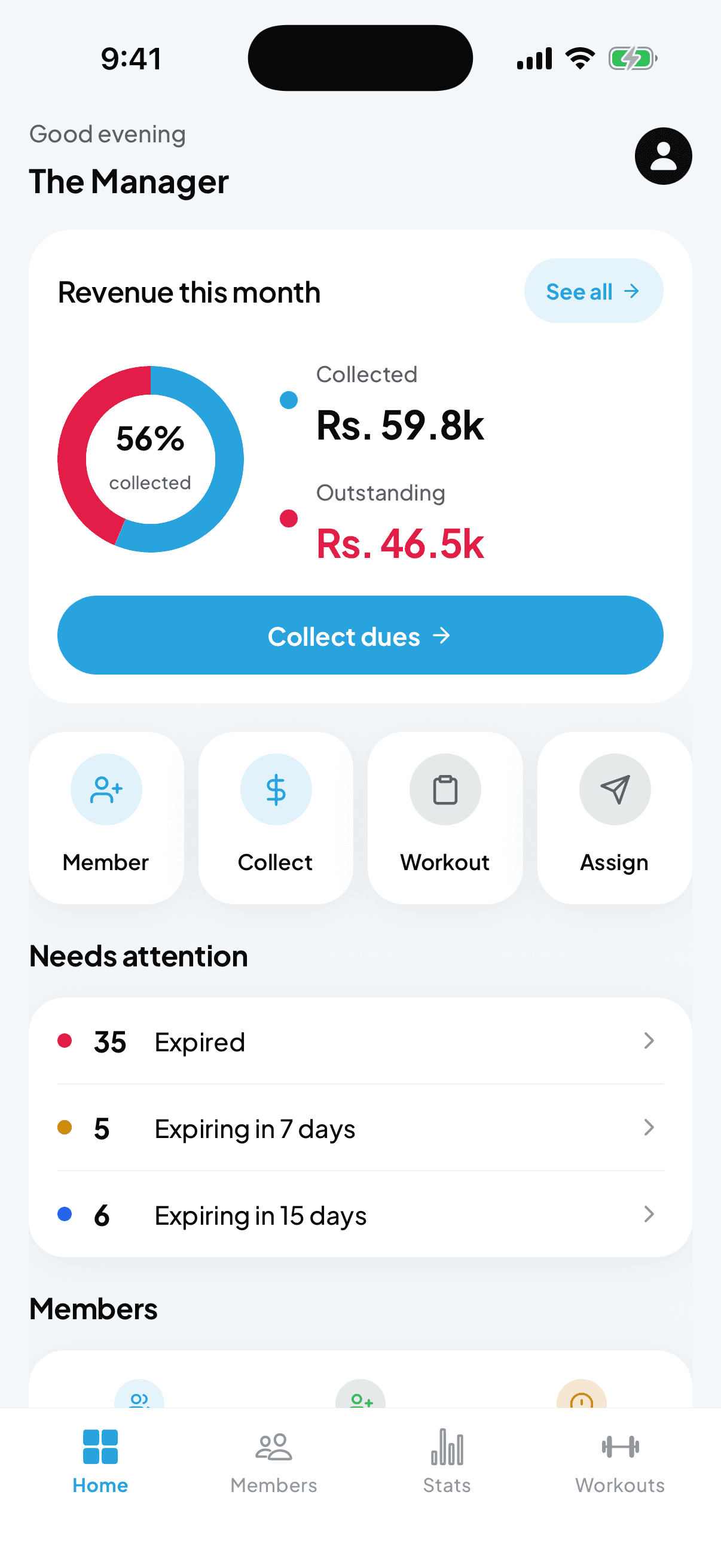
On the dashboard, look at the row of four buttons near the top: Member, Collect, Workout, Assign. Tap Workout (clipboard icon). The New workout screen opens.
Name it and set the basics
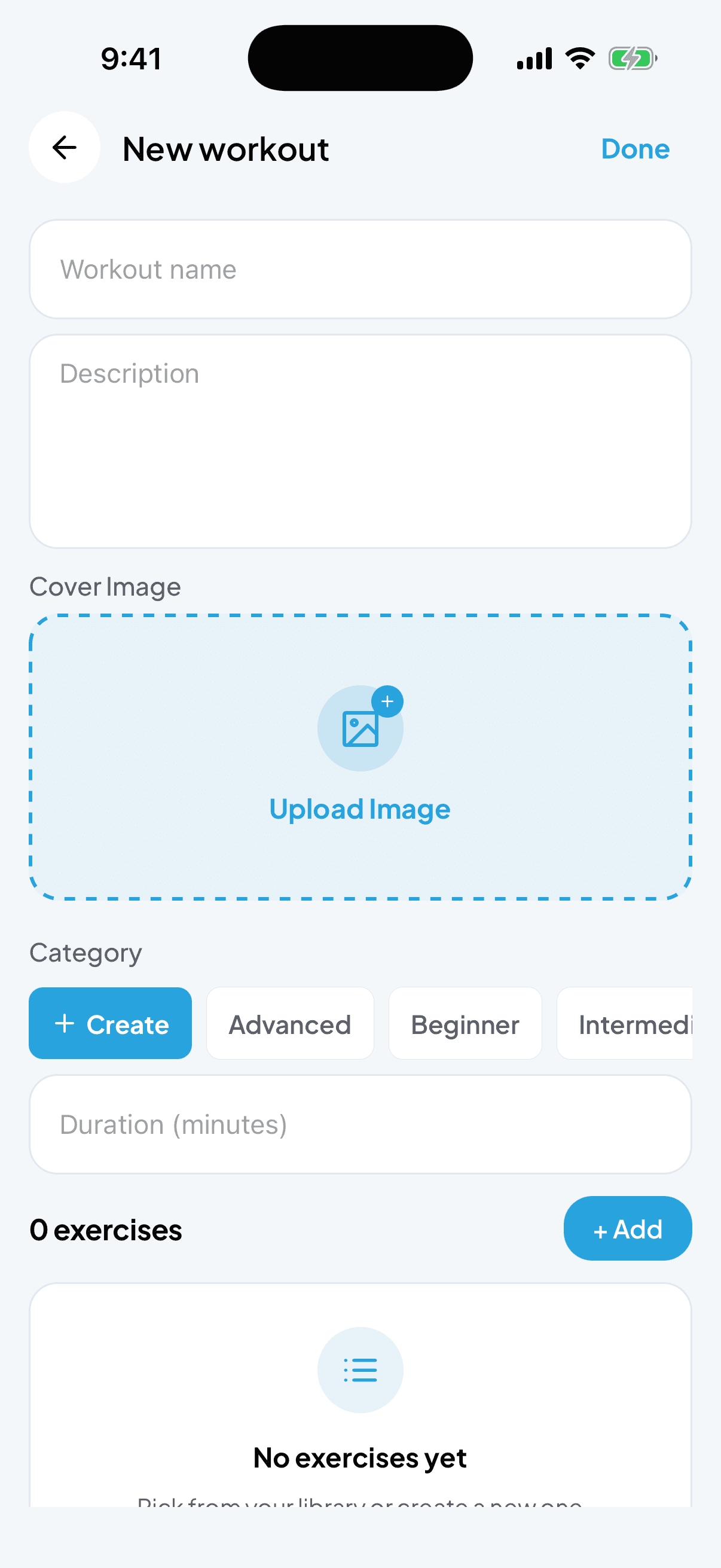
Type a name at the top — “Push A”, “Full body — beginner”, whatever your members will recognise. You can also add a short description, a cover image, a category (Beginner / Intermediate / Advanced, or create your own), and estimated duration. Only the name is required.
Add exercises
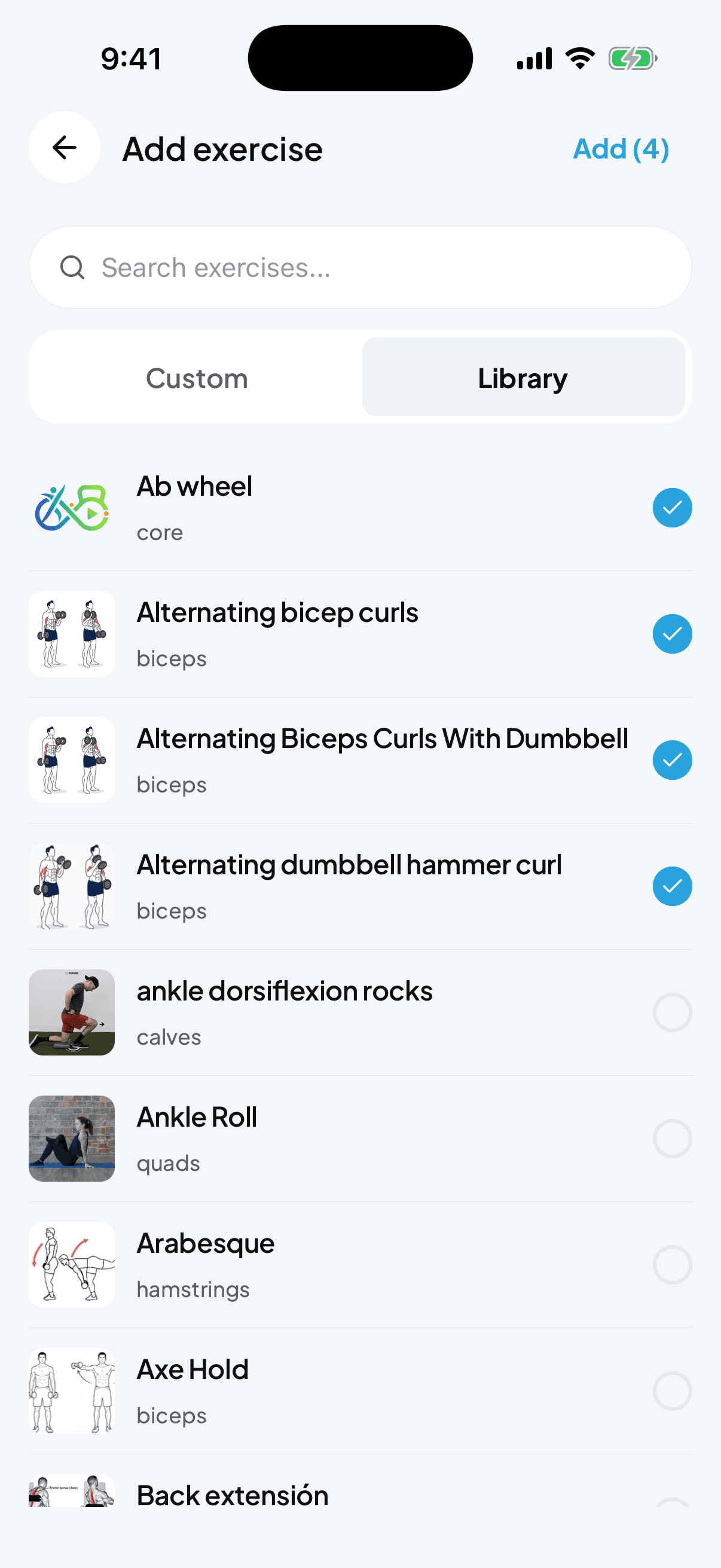
Scroll to the 0 exercises row and tap + Add. The picker opens with two tabs — Custom (your gym’s library) and Library (Fytlink’s starter list). Search or scroll, then tap any exercise to select it. You can pick several at once — the button at the top-right shows Add (3), Add (5) and so on. Tap it when you’re done.
Set sets, reps, rest
Each exercise you added shows a row. Tap it to fill in Sets (e.g. 3), Reps (e.g. 10 or “8–12”), Rest in seconds (optional, defaults to 60s), and any Notes you want the member to see (form cues, tempo, weight suggestion).
Tap Done
Done is in the top-right. The workout is saved to your library and you’re back on the dashboard.
Section 2 — Turn your note into a workout
Most gym owners already write programming on paper or in Notes. Fytlink turns that straight into a proper workout — no re-typing exercise by exercise. This is the fastest way to get a member’s week set up.
Open the member's Workouts tab
Dashboard → Members (bottom tab) → tap the member. On their profile, tap Workouts in the switcher near the top.
Open From note
Tap the round + button in the bottom-right corner. A small menu appears with two options: Assign workout and From note. Tap From note.
Give it a name
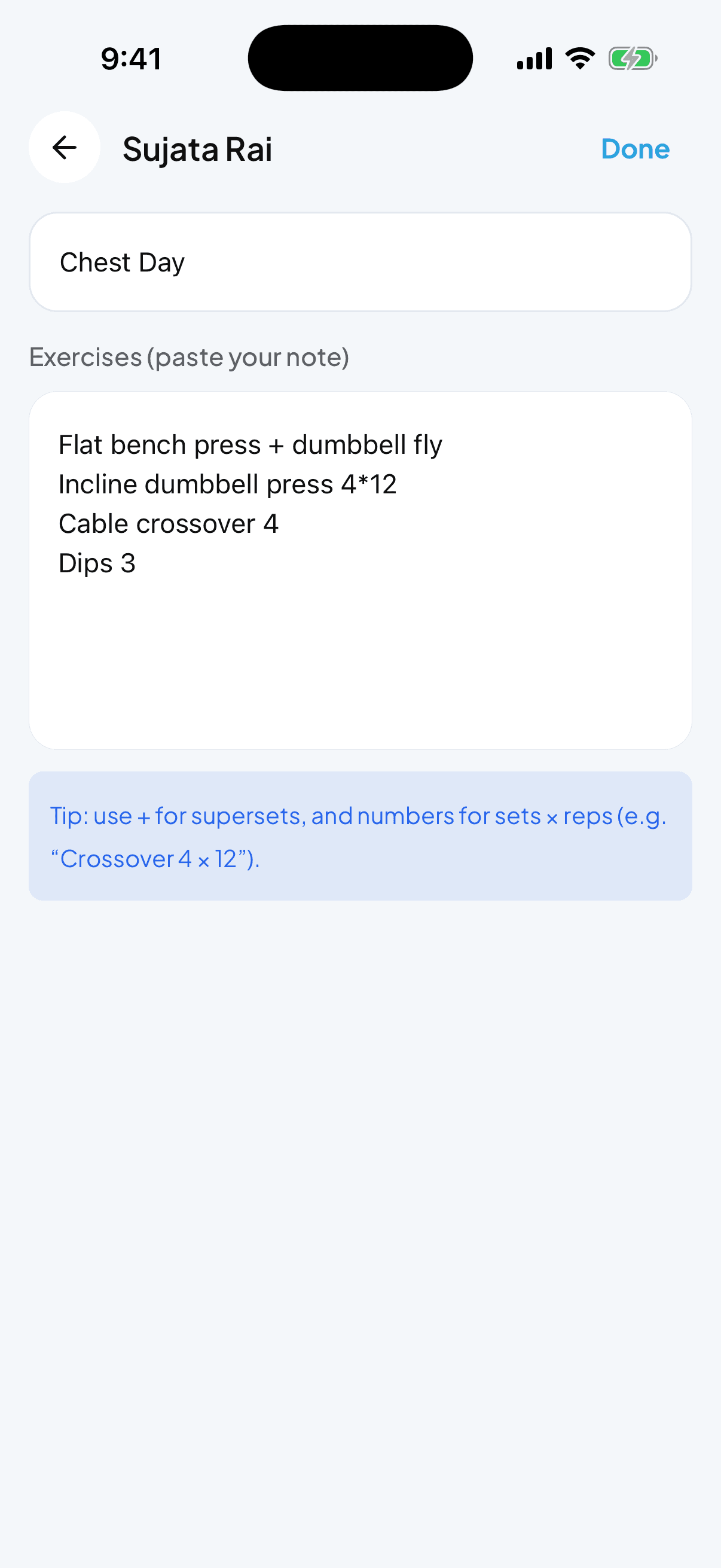
At the top, type the workout name — for example, “Chest day” or “Monday A”. Same as writing it on paper.
Paste or type your note
In the big text area, dump your programming. One exercise per line. The placeholder shows the format:
Flat bench press + dumbbell fly
Incline dumbbell press 4
Cable crossover 4
Dips 3
Two small shortcuts:
- Use + between two exercises for supersets (e.g.
Flat bench + dumbbell fly). - Add a number for sets, and
4 × 12style for sets × reps.
- Use + between two exercises for supersets (e.g.
Tap Done
Fytlink matches each line against your exercise library. If it recognises the exercise (even with typos and shorthand), it links it. If not, it creates a new one so nothing is dropped.
Review any new exercises
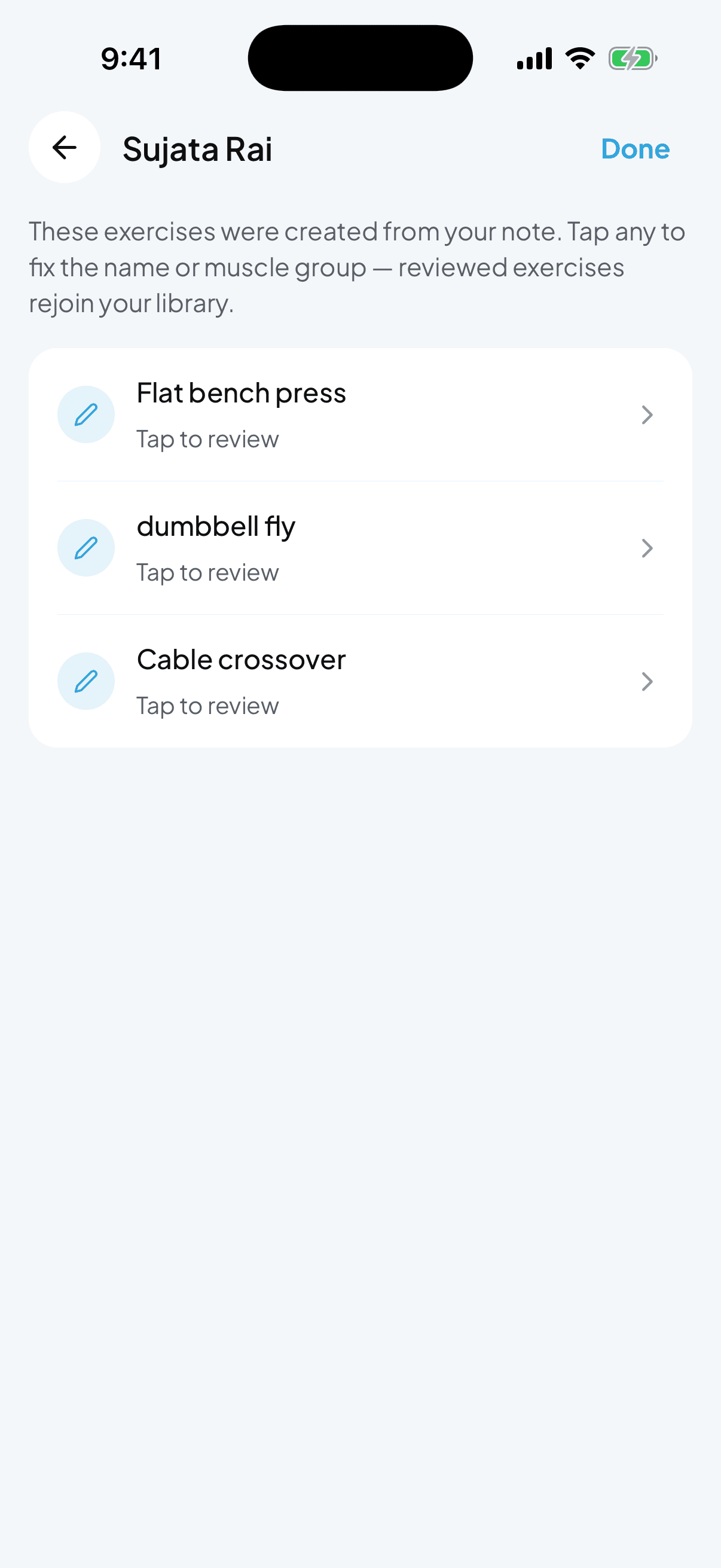
If Fytlink had to create new exercises, the New exercises screen opens next. Each row says either “Reviewed” or “Tap to review”. Tap any row to fix the name, muscle group, or add a video. Once reviewed, that exercise joins your Custom library properly and won’t need reviewing next time.
Section 3 — Assign a workout to a member
Use this when the workout already exists in your library (from Section 1) and you want to hand it to a specific person.
There are two ways in — pick whichever feels natural.
From the member's profile
Open the member
Dashboard → Members → tap the member’s row.
Go to the Workouts tab
On their profile, tap Workouts in the top switcher. Empty state? You’ll see an Assign workout button. Already have some? Tap the round + in the bottom-right and pick Assign workout.
Pick one or more
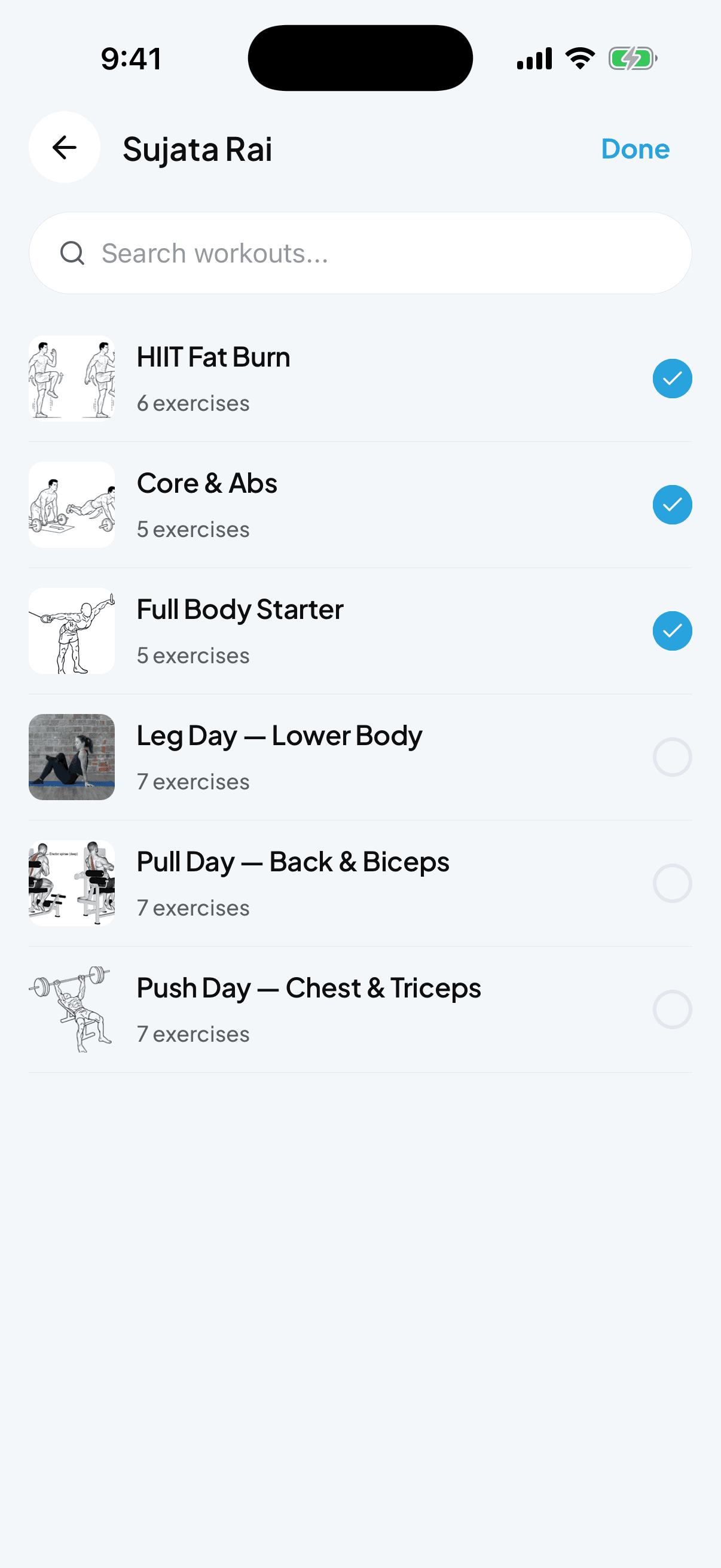
The picker lists your Custom workouts. Tap to select — you can pick several at once for a full training week. Selected workouts show a blue check on the right.
Tap Done
Done is in the top-right. The workouts appear on the member’s Workouts list immediately.
From the dashboard (fastest when you know both)
Tap Assign
Same row of four buttons at the top of the dashboard. Assign (paper-plane icon) opens the member picker first.
Pick the member, then the workouts
Tap the member, then tap one or more workouts, then Done. Two taps if you know exactly who and what.
Section 4 — Share workouts with your member
Now the member needs a way to actually open their workouts. That’s the share link — a private URL you send them on WhatsApp, SMS, email, whatever you use.
Open the member’s Workouts tab
Same place as before — Members → member → Workouts switcher.
Find the Share workouts card
Above the workouts list you’ll see a card labelled Share workouts, with the subtitle “Send these routines to the member”. Tap it (or tap the Share button inside).
Pick where to send it
Your phone’s share sheet opens — WhatsApp, SMS, Messenger, email, copy link. Pick the app, pick the member, hit send.
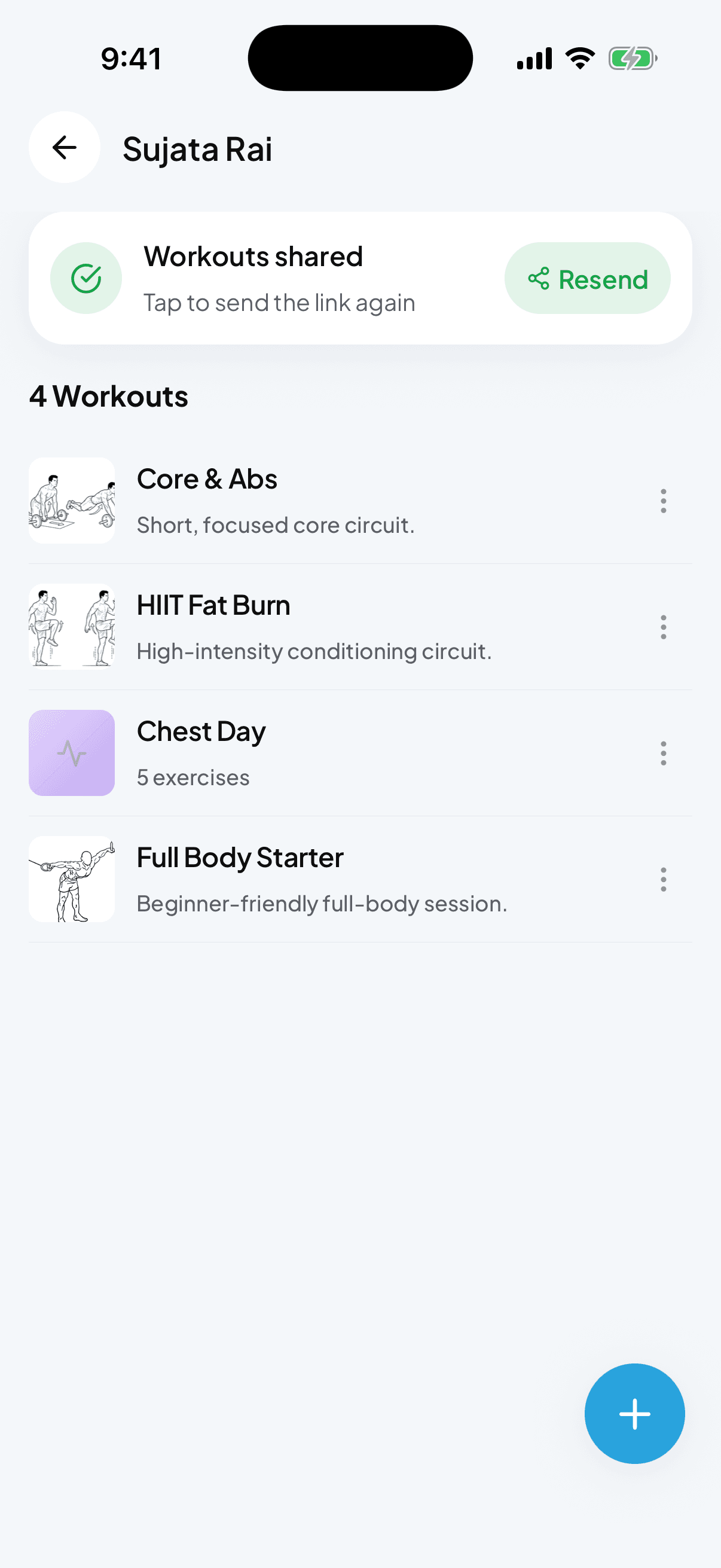
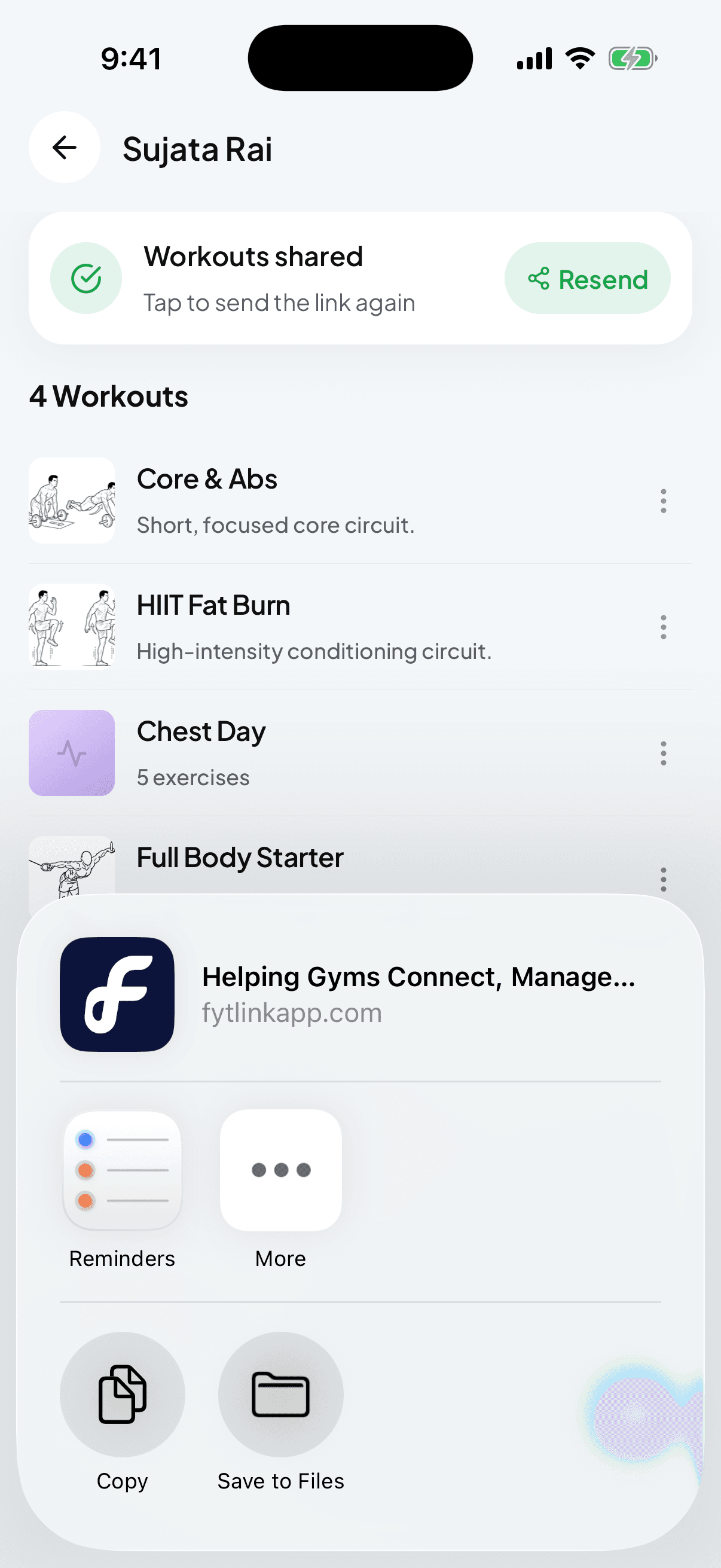
Once the link is generated, the card changes: the title now says Workouts shared and the subtitle reads “Tap to send the link again”. Tap it any time to re-send.
Section 5 — Everyday edits
You never have to re-share the link. Whenever you edit a workout, add exercises, or assign more, the member’s page updates automatically the next time they open it. One link, kept fresh.
A few small things worth knowing:
- Edit a workout. Tap the workout on your library or on the member’s list → Edit in the top-right. Same screen as when you built it.
- Unassign a workout. Open the member’s Workouts tab, tap the ⋯ next to the workout, choose Remove workout. It disappears from their shared page immediately.
- Clean up your library. Any exercise Fytlink auto-created from a note is marked as unreviewed until you fix it. You can go back to From note → New exercises any time and tidy them up in one sweep.
Common questions
Do members need to install the app? No. The share link opens in any phone browser. That’s the whole point — you keep the tools, they get one link.
Can two members share the same link? No. Each member has their own private link tied to their account. You can assign different workouts per person; nobody sees anyone else’s program.
Does the link expire? No. As long as the member is active on your gym, their link works. If you remove the member, the link stops working.
What if I mis-typed the note? Just edit the workout after — same screen as building from scratch. Rename it, add or remove exercises, save.
Can I turn a workout into a template for the whole gym? Yes — after building it, save it to your Custom library and it stays there for you to assign to anyone. That’s the default when you build from Workout on the dashboard.
Which is faster — building from scratch or From note? From note is faster once you’ve reviewed your library a few times. First few weeks, you’ll do a bit of reviewing; after that, Fytlink recognises your shorthand and it’s the fastest path.
Keep reading
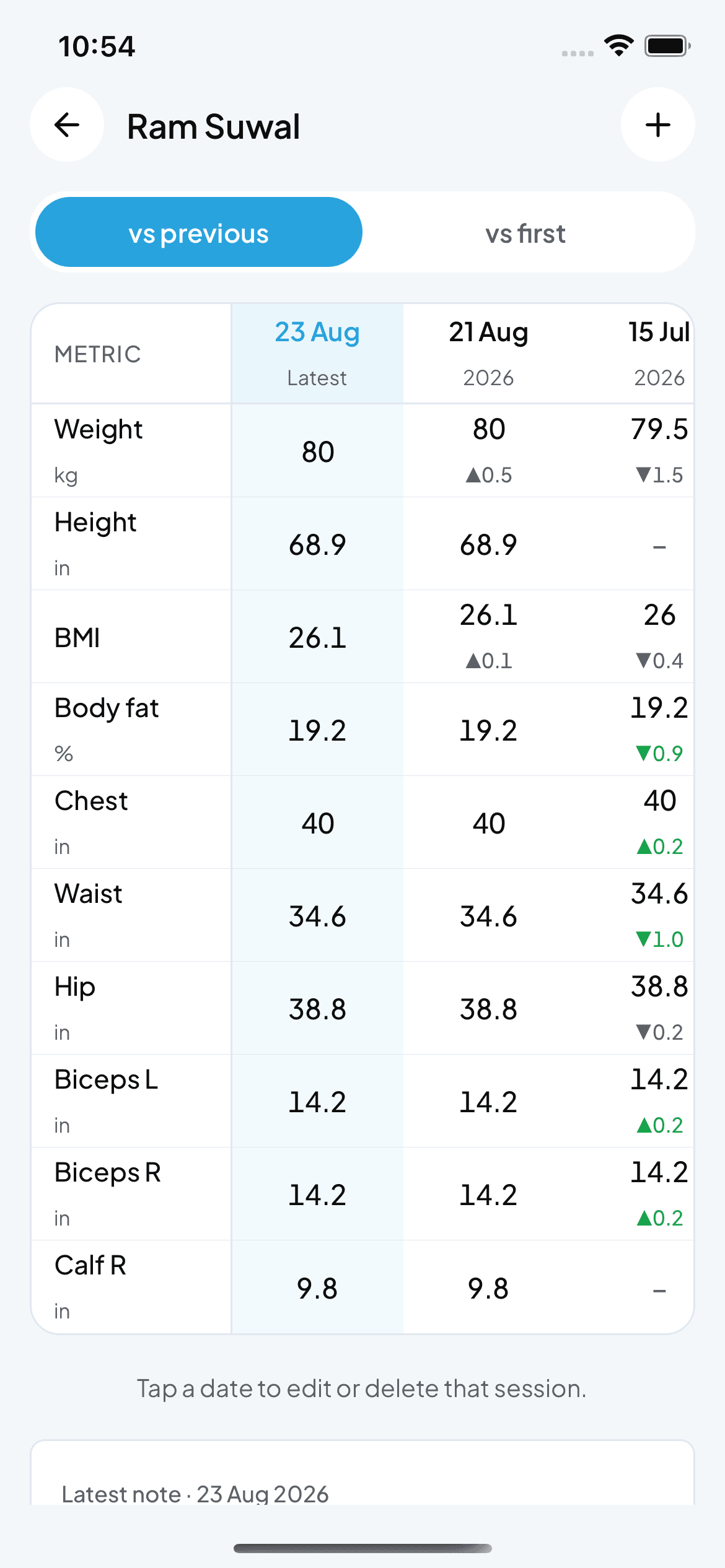
How to record and read body measurements
Fytlink tracks weight, tape and caliper readings per member as dated sessions. This guide walks through recording a session, reading the change grid, picking your unit system, and fixing bad entries.
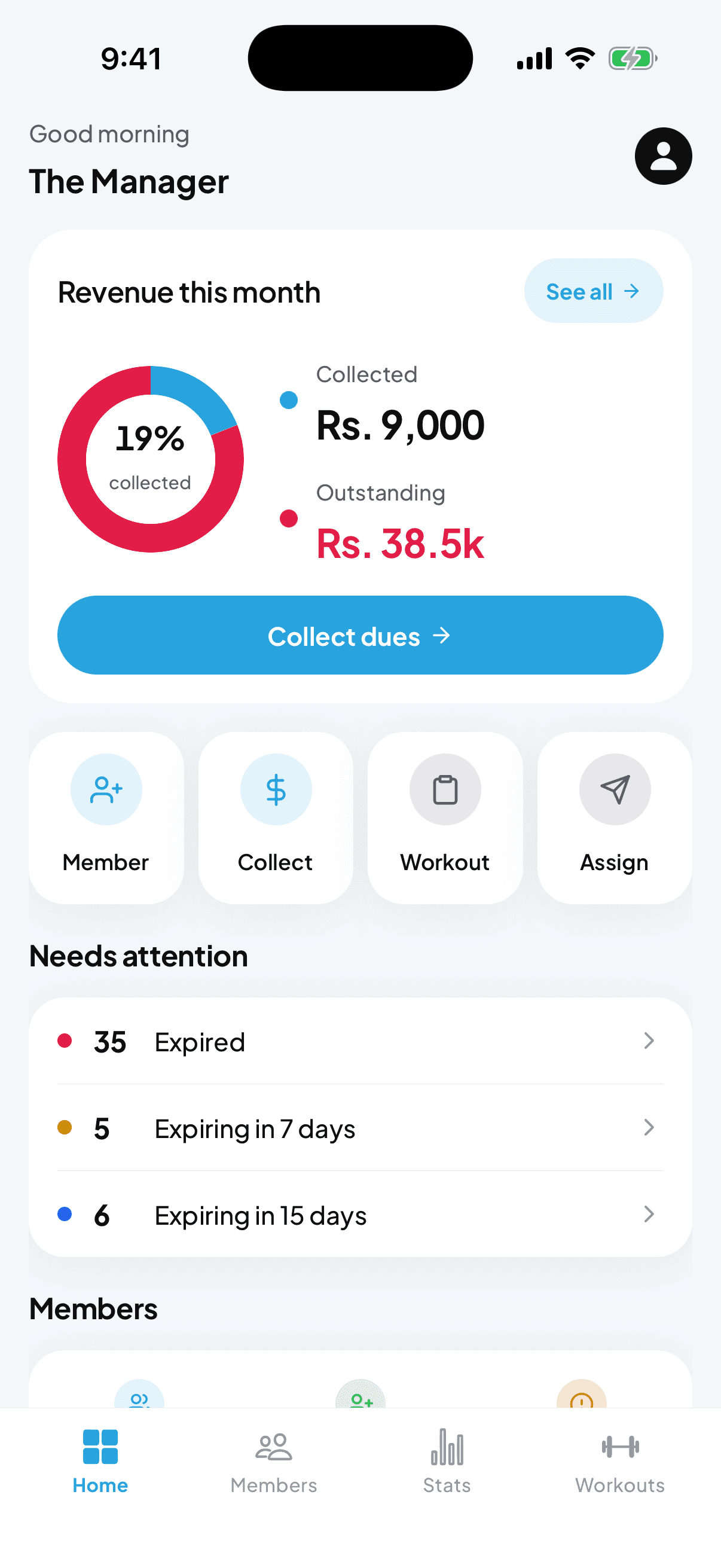
How to add your first member
A 60-second walkthrough for getting your first gym member into fytlink — from name and phone through their first plan.
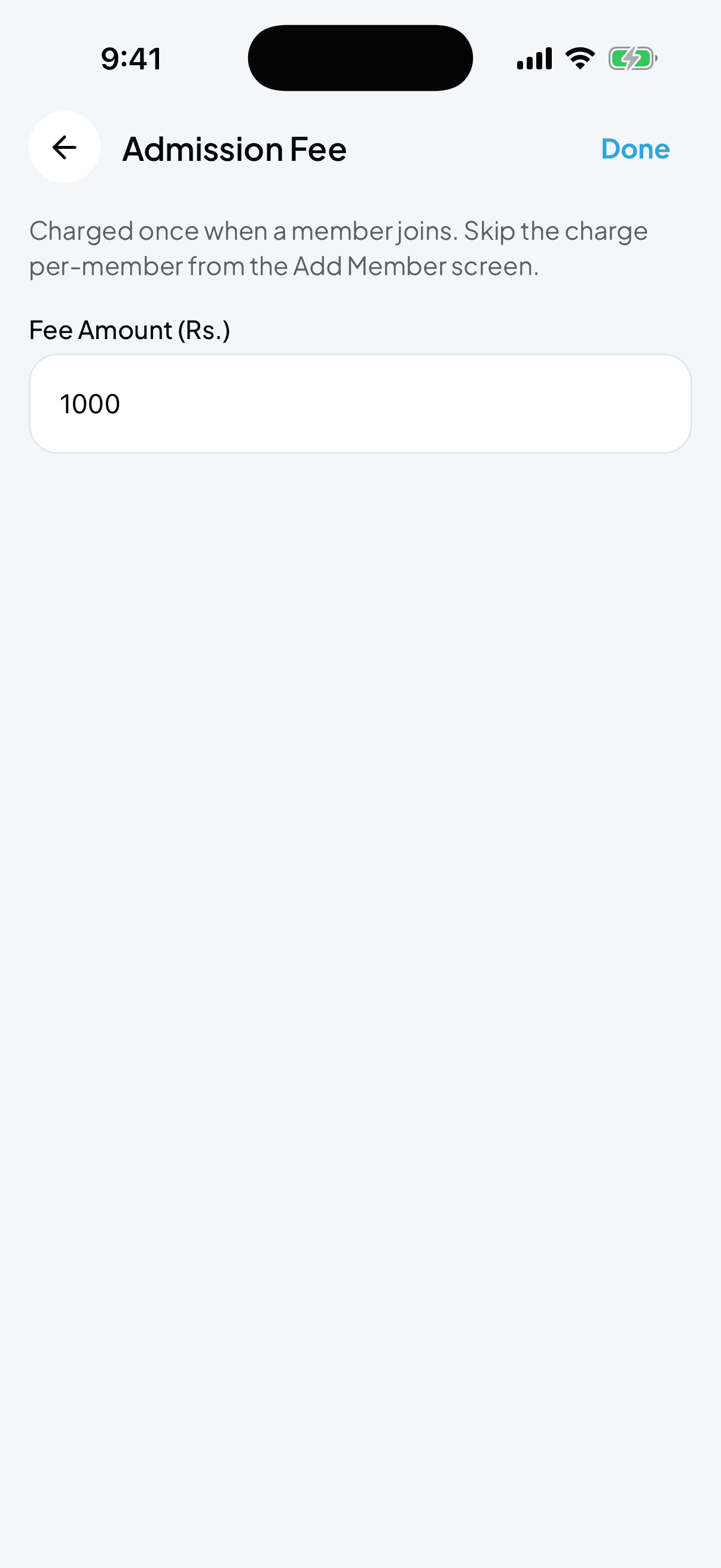
How to set and adjust the admission fee
The admission fee is a one-off charge that every new member pays when they join. Set it once, skip it for anyone you want.